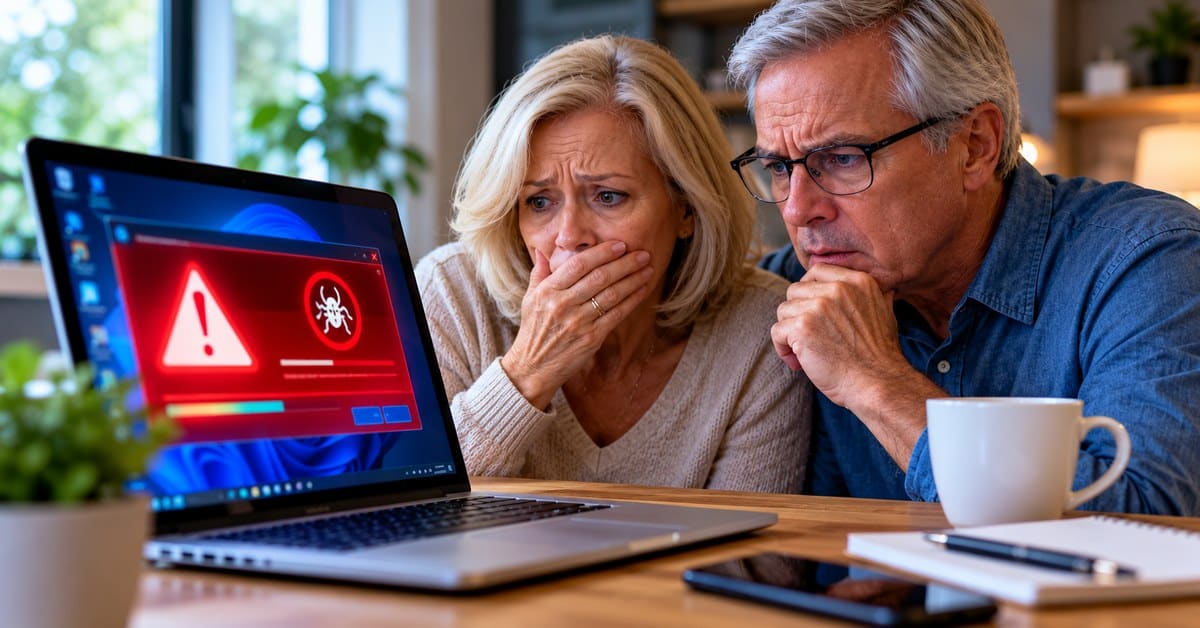
Imagine opening a familiar website and suddenly hearing an alarm from your computer. A large warning fills the screen. It claims Windows is infected, your files are in danger, and you must call a telephone number immediately. The message may even say, “Do not turn off your computer,” because doing so will supposedly corrupt Windows.
These frightening messages are often scareware, a common form of fake technical-support scam. At Computer Technologies and More in Hendersonville, Tennessee, we want you to recognize the trick before a scammer gets access to your computer, personal information, or bank account.


What Is Scareware, and Why Does It Appear?
Scareware uses fear to push someone into taking an action. A deceptive advertisement, compromised website, malicious notification, or redirected page can display a warning that looks like it came from Microsoft or a security program. Some pages play loud sounds, imitate a Windows error, or make the browser appear locked. A message on a website is not proof that your computer has a virus.
Even legitimate websites can sometimes display malicious advertisements or be compromised. You do not have to visit an obviously suspicious website to encounter a fake warning. That is why knowing how to respond matters more than trying to memorize a list of dangerous sites.
Five Warning Signs of a Fake Virus Alert
1. It tells you to call a support number immediately
Real Windows security warnings do not normally instruct you to telephone an unfamiliar number displayed in a browser popup. The person answering may pretend to be Microsoft, a bank, or a security technician. Their goal could be to sell unnecessary services, obtain payment, or persuade you to install remote-access software.
2. It threatens to destroy files if you shut down
“Do not turn off your computer or Windows will be corrupted” is a classic pressure tactic. A fake web page cannot determine that shutting down will damage Windows. Do not follow instructions from an alarming website. If the browser cannot be closed normally, use the steps below rather than calling the number.
3. It uses alarms, flashing colors, or a locked-screen illusion
Scammers use full-screen windows, repeated popups, countdowns, and warning sounds to create panic. Some pages try to stop you from navigating away. These tricks can make a browser tab look like a system-level emergency even when the operating system is functioning normally.

4. It asks for remote access or payment
A fake technician may ask you to download remote-control software, sign in to online banking, buy gift cards, or pay a fee to remove nonexistent infections. Never give an unexpected caller access to your device. Legitimate support arrangements should be initiated through a trusted company you selected yourself.
5. It asks for passwords or personal information
Scammers may request email passwords, Social Security numbers, credit card details, or banking credentials under the excuse of “verifying your account.” No browser warning should be trusted with this information. A request to keep the call secret is another serious red flag.
What Should You Do When the Warning Appears?
First, do not call the number, click its buttons, or download anything. Try closing the browser tab or window. On Windows, press Ctrl + Shift + Esc to open Task Manager if the browser is unresponsive, select the browser, and choose End task. If necessary, restart your computer using normal Windows controls. Avoid restoring the suspicious tabs when reopening your browser.
Next, check whether your browser has unfamiliar notification permissions or extensions. Update Windows and your browser, then run a scan with a trusted security tool such as Windows Security. A fake warning by itself does not prove malware was installed, but downloads, permissions, or remote access may require further investigation.
What If You Already Called or Allowed Access?
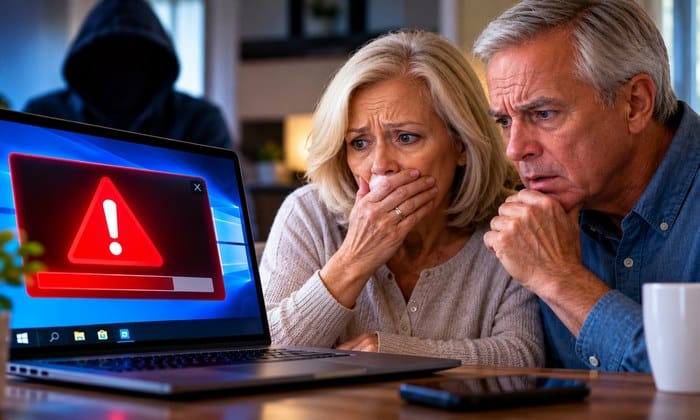
If you gave someone remote access, disconnect your computer from the internet and contact a trusted computer professional. From a different, trusted device, change important passwords and enable multifactor authentication. If you entered payment or banking information, contact your bank or card issuer immediately and explain that you may have been scammed. Monitor your accounts and report the incident at ReportFraud.ftc.gov.
If you paid a scammer, ask your financial institution about stopping or reversing the transaction. If you installed software at their direction, have the device checked before using it for sensitive accounts again.
Protect Your Computer Before the Next Scareware Attack
Keep Windows, browsers, and security software updated. Use a reputable browser with popup protection, avoid unexpected downloads, and back up important files. Teach family members that an urgent warning on a website is not the same as a verified diagnosis from a technician.
Computer Technologies and More helps customers with virus and malware removal, computer security checks, troubleshooting, data backup, and remote or in-shop support. If a suspicious warning has appeared on your PC or Mac, contact us at 615-988-1156 or visit 394 West Main Street, Suite A-15, Hendersonville, TN 37075. We can help you understand what happened and determine whether your computer needs attention.
For more information, see the Federal Trade Commission’s guidance on tech support scams.